Microsoft Teams
Select one:
- Sign in to Microsoft Teams (Desktop Version)
- Sign in to Microsoft Teams (Web Version)
- Sign in to AudioCodes Handset Device
Sign in to Microsoft Teams (Desktop Version)

- Locate the Start menu option.
- Type Microsoft Teams in the search bar.
- Select Microsoft Teams.
Sign in using CougarNet credentials
- In the Sign in Address field, enter CougarnetID@cougarnet.uh.edu.
- Click Next.
- In the Password field, enter your CougarNet password.
- Click Sign in.
- In the Microsoft Authenticator app, enter the number displayed on the screen.
- Tap Done on the Microsoft Authenticator app.
Note: Your CougarNet username and password will be automatically saved after the first successful login.

Watch a short video on Signing into Microsoft Teams!
Microsoft Teams for Mac
To open Microsoft Teams:
1. Click the Microsoft Teams icon on your dock.
To Sign in to MS Teams:
1. In the Sign in Address field, enter your Microsoft 365 email address (for example: CougarnetID@cougarnet.uh.edu).
2. Click Next.
3. In the Password field, enter your CougarNet password.
4. Click Sign in.
5. In the Microsoft Authenticator app, enter the number displayed on the screen.
6. Tap Done on the Microsoft Authenticator app.

Watch a short video on Signing into Microsoft Teams for Mac!
Sign in to Microsoft Teams (Web Version)
- Go here: Login.microsoft.com
- In the Sign in Address field, enter CougarNetID@cougarnet.uh.edu.
- Click Next.
- In the Password field, enter your CougarNet password.
- Click Sign in.
- In the Microsoft Authenticator app, enter the number displayed on the screen.
- Tap Done on the Microsoft Authenticator app.
Sign in to AudioCodes Handset Device
To sign in:
1. Connect the device to the network; this screen is then displayed:
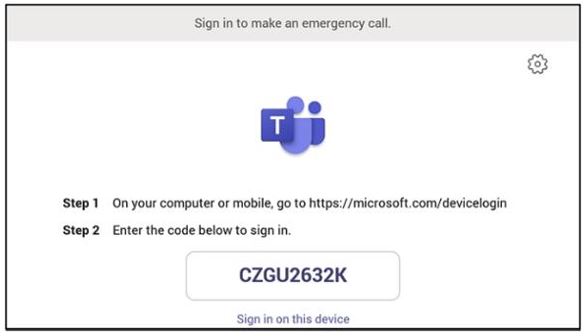
2. Open your browser and point it to https://microsoft.com/devicelogin as instructed in the preceding screen.
3. Enter the code and then click Next.

4. Select the account.
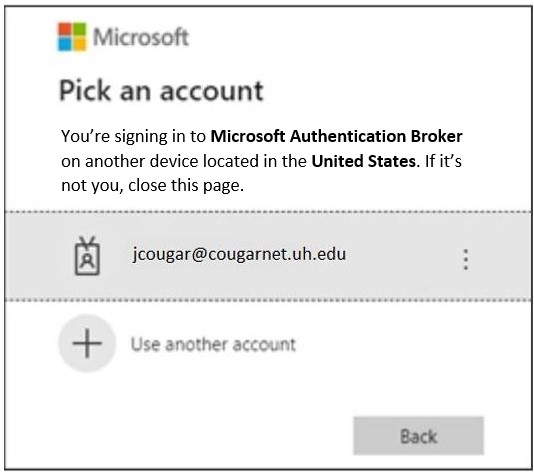
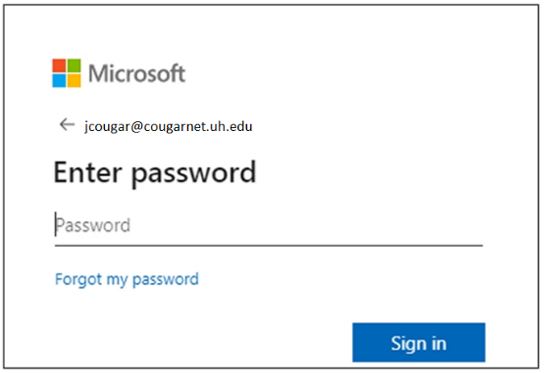
5. Enter your CougarNet password and then click Sign in.
6. Click Continue.
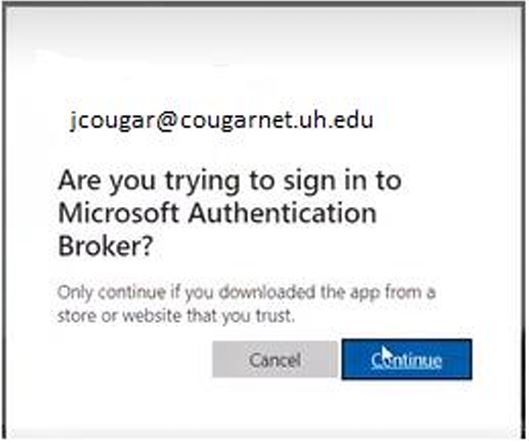
Note: This is the screen that confirms your code authentication.
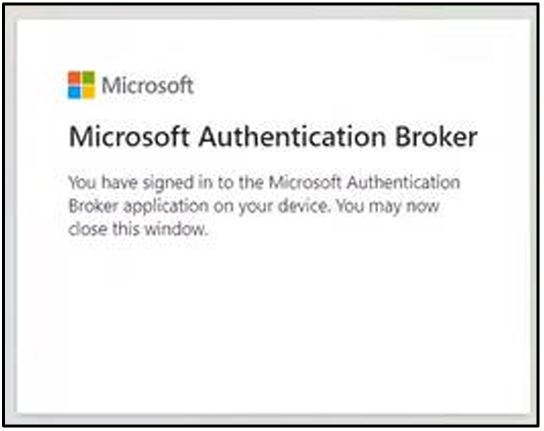
7. On the AudioCodes handset device screen, enter your CougarNet password and then click Sign in.
View the home screen; you’ve successfully signed in.
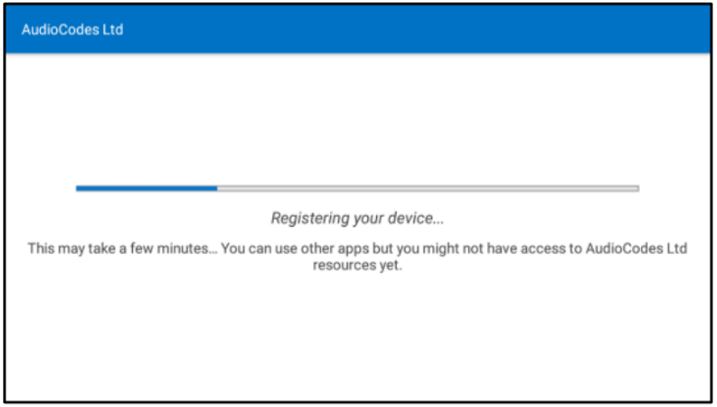
Note: The C470HD phone might restart once you sign in. If it does that, unplug the ethernet
cable
and plug it back in. Hold the pause button until you see the word erasing on the screen,
then sign in
again.
For Microsoft Teams related questions or problems, send email to unifiedcommunications@uh.edu.